How many times have you uploaded the same company logo into different templates? Or hunted through your files for that specific version of a signature image you used last month? It’s a small annoyance that adds up fast — especially when you’re managing a library of templates.
MailMergic now has a built-in Image Library where you upload your images once and reuse them across all your templates with a simple drag and drop.
How it works
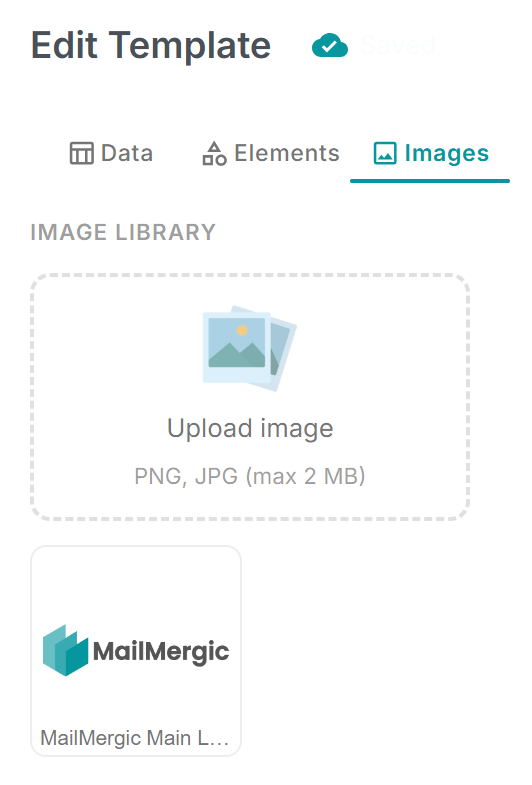
In the editor sidebar, you’ll find an Images tab. Click Upload image to add a picture (PNG or JPG, up to 2 MB) to your personal library. Once uploaded, the image stays there permanently — available in every template you open.
To use an image, just drag it from the library onto your canvas. Resize and position it like any other element. Done.

What to put in your library
Anything you use across multiple templates is a great candidate:
- Company logos — your main logo, alternative versions, partner logos
- Signatures — a scanned signature for official letters or certificates
- Stamps and seals — “Approved”, “Certified”, quality marks
- Decorative elements — icons, badges, or design accents that are part of your brand
- Headshots or team photos — for personalized documents like employee directories or event programs
Keep it tidy
Each image shows a preview in the library grid, so you can see at a glance what’s available. If you no longer need an image, hover over it and click the delete button to remove it. Your library stays clean and manageable.
No more re-uploading
The key benefit is simple: upload once, use everywhere. Whether you have two templates or twenty, your logos, signatures, and brand assets are always just a drag away. No more downloading from shared drives, no more “which version was it?” — everything lives right in the editor.
Open the editor, click the Images tab, and start building your library. Your most-used images are about to become a lot easier to manage.